User Guide v2.0
Everything you need to know to get the most out of Dektor.
Table of Contents
Getting Started
Creating an Account
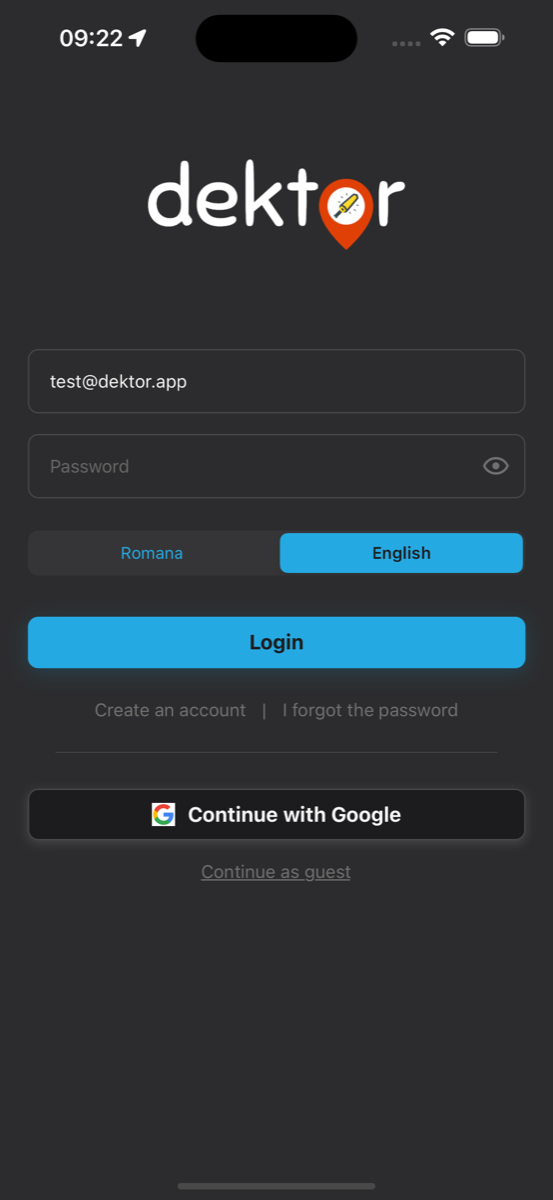
To access all features, create a free Dektor account:
- Open the app and tap "Create an account" on the login screen.
- Enter your name, email address, and choose a password.
- Accept the Terms of Service and tap Sign Up.
- Check your email and verify your account by tapping the verification link (see Email Verification below).
Sign In with Google
You can also create an account or sign in instantly using your Google account. Tap the "Continue with Google" button on the login screen and follow the prompts. Your name and email will be imported automatically from your Google profile.
Forgot Password
If you forgot your password, tap "I forgot the password" on the login screen. Enter your email address and you'll receive a password reset link. Open the link from your email, enter your new password, and you'll be able to log in again.
Email Verification
After signing up, you'll be taken to a verification screen. Check your email inbox (and spam folder) for a verification link from Dektor. Tap the link to confirm your account. If you didn't receive it, use the "Resend" button on the verification screen — there is a 30-second cooldown between resend attempts. Once verified, the app will automatically detect it and take you to the map.
Guest Mode
You can also browse the map without creating an account by tapping "Continue as guest" at the bottom of the login screen. Guest mode allows you to explore archaeological sites on the map, but premium features like session tracking, find logging, and proximity alerts require a registered account.
App Permissions
Dektor needs the following permissions to work properly:
- Location — Required to show your position on the map, track sessions, and trigger proximity alerts. For background tracking during sessions, allow "Always" access.
- Notifications — Used for proximity alerts when approaching archaeological sites.
- Photos & Camera — Needed to take photos of your finds or select images from your gallery.
Map Navigation
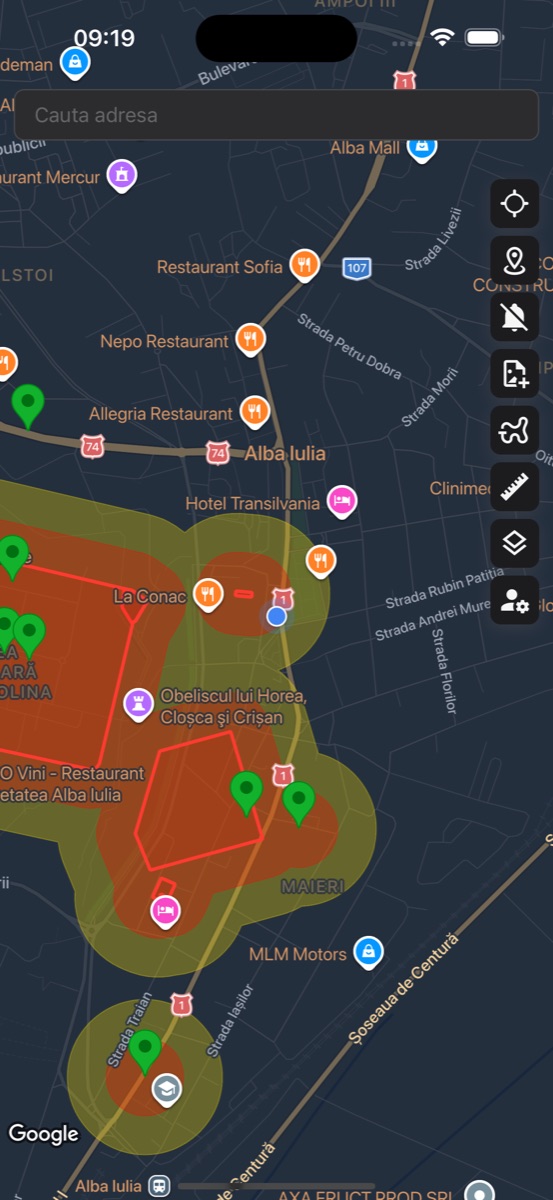
The map is the heart of Dektor. Once logged in, you'll see an interactive map showing archaeological sites in your area. Pan, zoom, and explore to discover sites across Romania.
Toolbar Buttons
The vertical toolbar on the right side of the map gives you quick access to all features:
- 📍 Locate — Centers the map on your current GPS position.
- 🎯 Site Position — Toggles between the official RAN position and community-suggested positions that have been approved. Pending suggestions are not displayed on the map.
- 🔔 Proximity Alerts — Activates real-time notifications when approaching archaeological sites.
- 📸 Add Find — Opens the find logging dialog to record a new discovery.
- 🛤️ Track Session — Starts or manages your GPS tracking session.
- 📐 Measure — Activates the measurement tool for distances and areas.
- 🗺️ Layers — Opens the map style and overlay layers panel.
- ⚙️ Settings — Opens your profile and app settings.
Search
Use the search bar at the top of the map to find any address or location. Start typing and select from the autocomplete suggestions to navigate directly to that area.
GPS Accuracy
A GPS accuracy indicator is displayed on the map showing your current positional accuracy in meters. Green indicates high accuracy (under 10m), yellow means moderate accuracy (10-25m), and orange indicates lower accuracy (over 25m). For the best experience, ensure you have a clear view of the sky.
Archaeological Sites
Dektor displays archaeological sites from the Romanian National Archaeological Record (RAN). These are legally protected areas where metal detecting is prohibited. The app helps you identify and avoid these zones.
Danger & Warning Zones
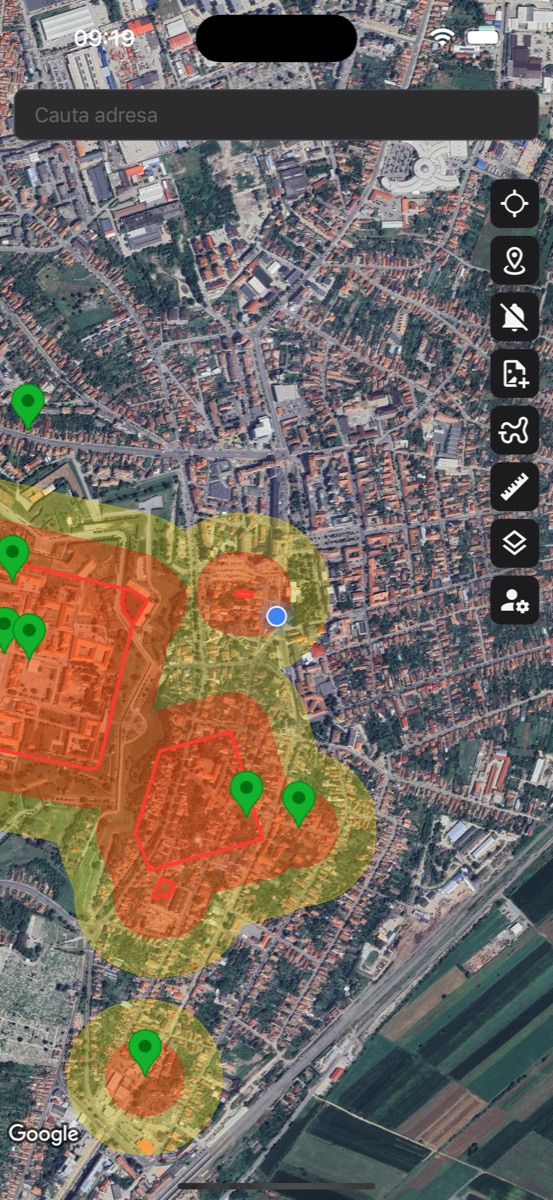
Each site is displayed with colored overlay zones:
- Danger Zone (Red) — The actual boundaries of the archaeological site. Detecting within this area is illegal.
- Warning Zone (Orange/Yellow) — An extended buffer zone around the site. Exercise caution — you are close to a protected area.
Site Markers
Sites are indicated by color-coded markers showing the accuracy of their position:
- Green — Exact Position — The site location has been precisely verified.
- Red — Imprecise Position — The location is approximate and may not be perfectly accurate.
- Blue — Community Suggested — A location suggested and approved by the Dektor community.
Site Details
Tap any site marker to view its details. The information panel shows:
- Site name and classification
- GPS coordinates and terrain type (urban, rural, extravilan) — the terrain type is identified by AI and may not always be accurate
- Position accuracy indicator
- Direct link to the RAN (National Archaeological Record) database
Important Disclaimer
The positions of archaeological sites displayed in Dektor are provided for informational purposes only. Both the official positions sourced from the RAN database and the community-suggested approved positions may contain inaccuracies, as the underlying data may be incomplete, outdated, or imprecise. Dektor, its developers, and contributors make no guarantees regarding the accuracy, completeness, or reliability of site locations. Users are solely responsible for ensuring they comply with all applicable laws and regulations. The app should be used as a supplementary tool and not as the sole basis for determining whether a particular area is legally protected. By using Dektor, you acknowledge that the developers and contributors cannot be held liable for any consequences arising from inaccurate site data.
Suggest a Correction
If you believe a site's position is incorrect, you can suggest a correction. Open the site details, tap the location picker, place the marker at the correct position, and submit your suggestion. All suggestions are reviewed before being applied.
Proximity Alerts
One of Dektor's most important safety features. Proximity alerts notify you in real-time when you're approaching an archaeological site, helping you stay within legal boundaries.
- Tap the bell icon on the toolbar to activate proximity alerts.
- Keep the app running (it works in the background).
- You'll receive a notification with vibration when approaching a site.
The alert system uses two zones:
- Warning Zone — You receive a first alert when entering the extended buffer area around a site. The toolbar icon turns orange.
- Danger Zone — A stronger alert triggers when you're within the actual site boundaries. The toolbar icon turns red.
Session Tracking
Track your detecting sessions with GPS to keep a record of where you've been. Your path is drawn on the map in real-time and saved for later review.
Starting a Session
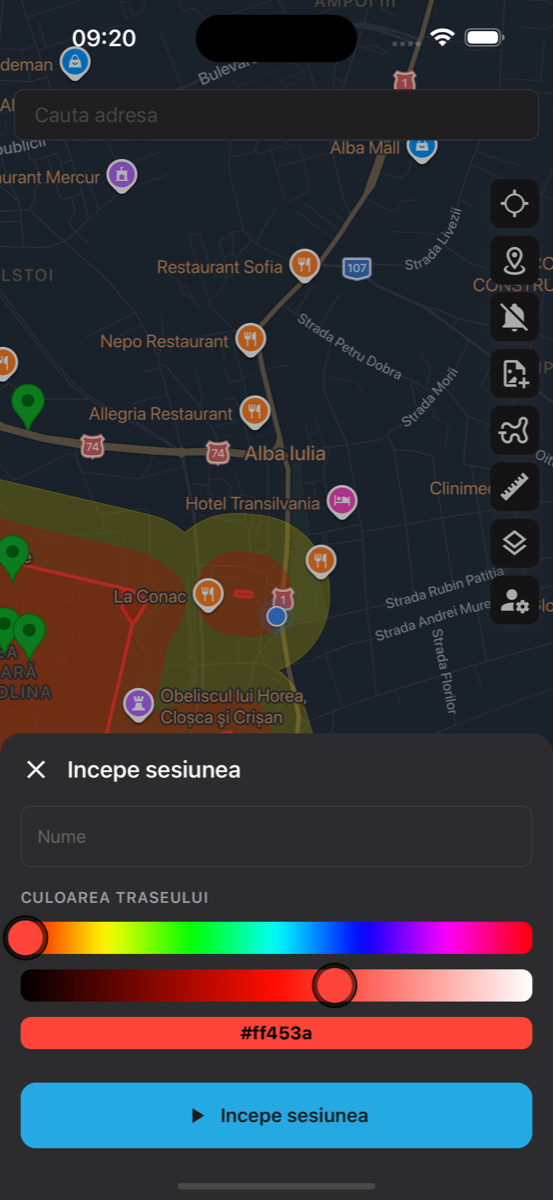
- Tap the track button on the toolbar.
- Give your session a name (optional).
- Choose a track color using the color picker.
- Tap "Start Session" to begin tracking.
During a Session
While a session is active, the track button turns red and your path is drawn on the map. The app tracks your location in the background, so you can lock your phone and keep detecting. You can:
- Pause and resume tracking at any time.
- View your distance traveled, duration, and average speed.
- Log finds that are automatically associated with your session.
- Tap the track button again to view session details or end the session.
Editing Sessions & Tracks
After a session is saved, you can edit both the session details (name, color) and the track path. Tap on a saved track to select it, then use the edit mode to adjust waypoints — drag them to new positions or delete individual points to clean up your path.
Logging Finds
Record your discoveries with photos, notes, and precise GPS coordinates. Each find is saved to your profile and displayed on the map.
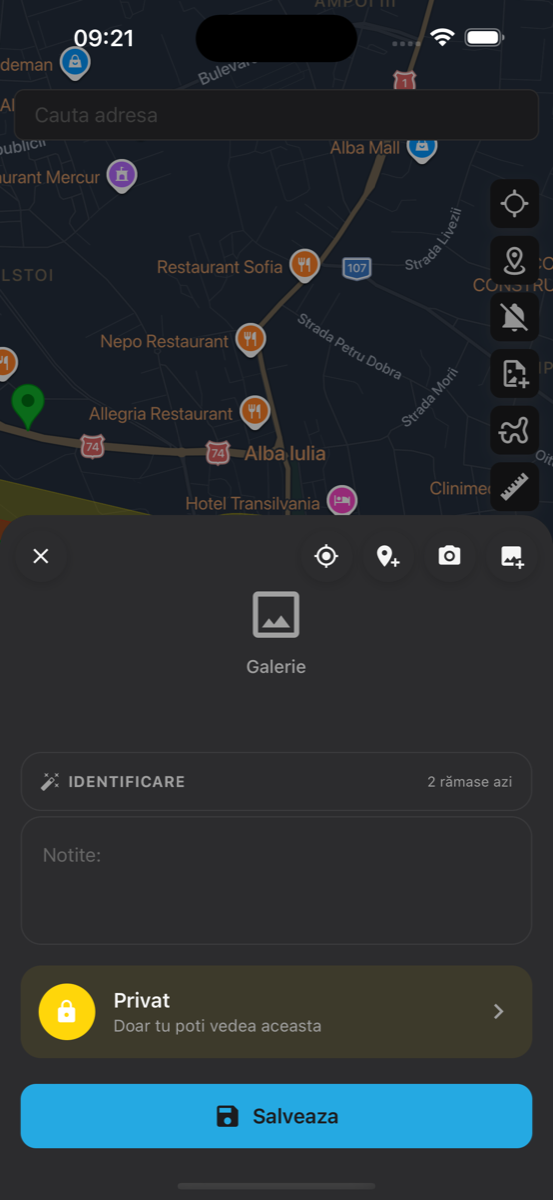
Recording a Find
- Tap the camera icon on the toolbar to open the find logger.
- Take a photo or select one from your gallery. You can add multiple images.
- Add notes describing your discovery.
- The location is automatically set to your current GPS position. You can adjust it by tapping the map.
- Tap "Save" to record your find.
AI Identification
Dektor includes an AI-powered artifact identification feature. After adding a photo, tap the "Identify" button to get a suggested identification. The AI analyzes the image and provides its best guess along with a confidence level. Each account has a limited number of AI identifications.
Find Privacy
You can mark any find as "Private" using the toggle in the find dialog. Private finds are only visible to you and won't appear on the public map for other users.
Measurements
The measurement tool lets you measure distances and areas directly on the map. Useful for estimating field sizes, distances between points of interest, or the size of a site zone.
How to Measure
- Tap the ruler icon on the toolbar to activate measurement mode.
- Tap on the map to place your first point.
- Tap again to add more points. The distance between points is shown in real-time.
- To measure an area, add 3 or more points — the polygon will close automatically.
The tool supports two measurement types:
- Distance — Measured in meters or kilometers between two or more points.
- Area — Calculated in square meters or square kilometers when three or more points form a polygon.
Map Layers & Overlays
Dektor offers multiple map styles and overlay layers to enhance your experience. Access them by tapping the layers icon on the toolbar.
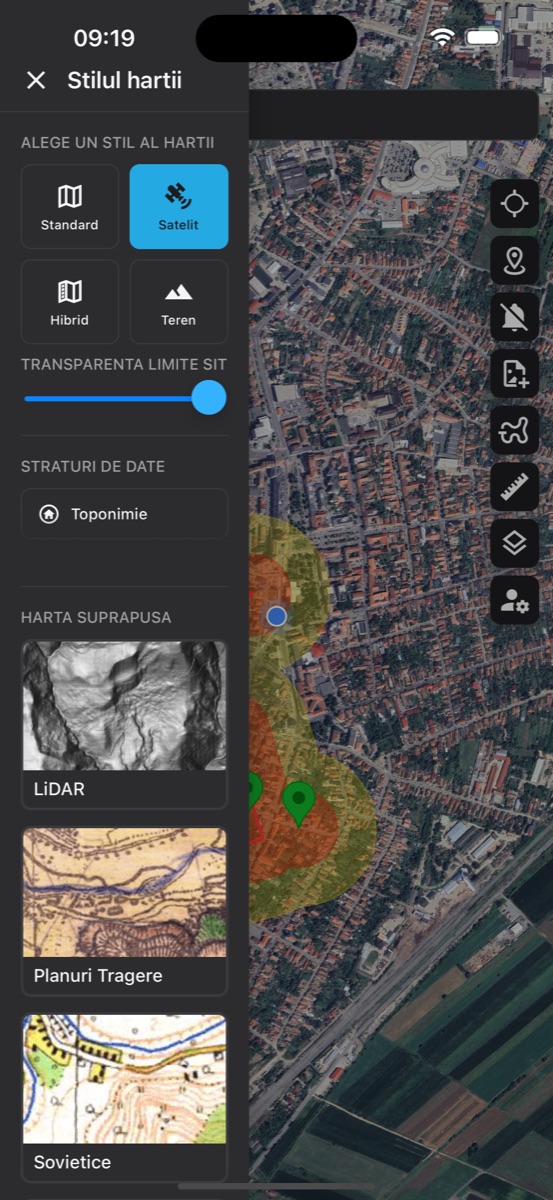
Map Styles
Choose from four base map styles:
- Standard — Default map with roads and labels, optimized for dark mode.
- Satellite — Aerial imagery — great for identifying terrain features and field boundaries.
- Hybrid — Satellite imagery with road labels and names overlaid.
- Terrain — Topographic map showing elevation and terrain features.
Overlay Maps
Premium overlay maps add historical and analytical layers on top of the base map:
- LiDAR — Light Detection and Ranging data reveals subtle terrain features invisible to the naked eye — mounds, ditches, old fortifications.
- Historical Maps — Austrian-Hungarian military survey maps and other historical cartography, useful for identifying old settlements and roads.
- Soviet Maps — Detailed Soviet-era topographic maps with precise terrain features.
Continuously Updated
The list of available overlay maps is continuously being updated. New historical maps, data layers, and analytical overlays are added regularly to give you the best possible tools for exploring the terrain.
Transparency Controls
Use the transparency sliders to adjust the opacity of overlay maps and site boundary zones. This lets you blend overlays with the base map for optimal visibility.
Settings
Access your profile and app settings by tapping the settings icon (bottom of the toolbar).
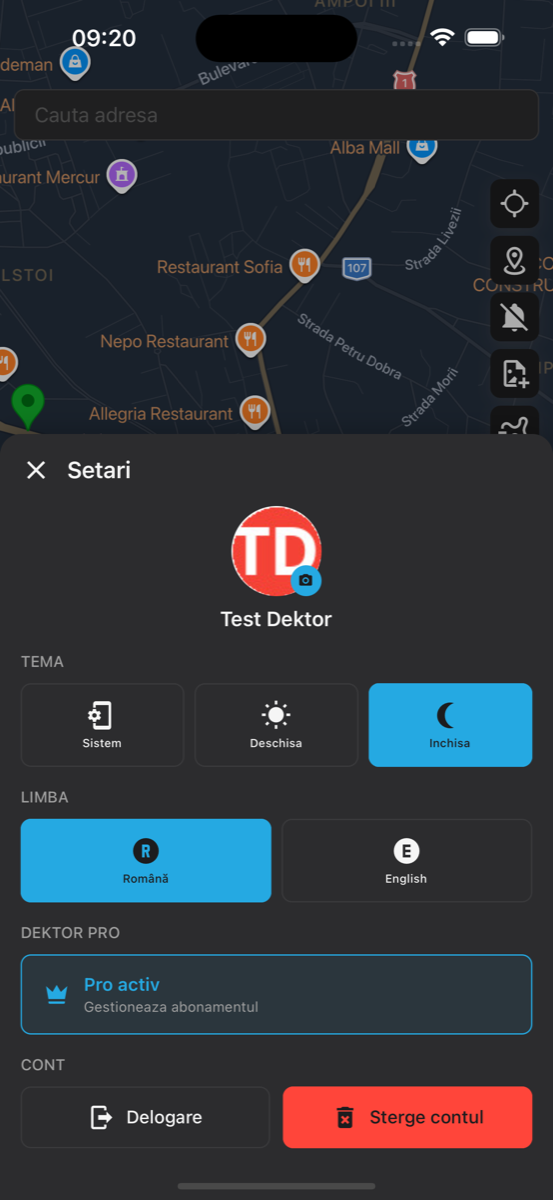
Profile
View and update your profile photo, name, and email. Tap your avatar to upload a new profile picture from your camera or gallery.
Appearance
Choose your preferred app theme:
- System — Follows your device's dark/light mode setting.
- Light — Bright theme for daytime use.
- Dark — Dark theme that's easier on the eyes in low light.
Language
Switch between Romanian and English. The language change applies immediately throughout the app.
Account
From the settings panel you can log out of your account or permanently delete it. Account deletion removes all your data including finds, tracks, and profile information.
Premium Features
Dektor offers a free tier with essential features and a premium subscription that unlocks the full experience.
Free Features
- View all archaeological sites on the interactive map
- Browse site details and access RAN database links
- Search for locations and addresses
- Switch between map styles (standard, satellite, hybrid, terrain)
Premium Features
- Session tracking with GPS path recording
- Find logging with photos and AI identification
- Proximity alerts when approaching sites
- Distance and area measurement tool
- Overlay maps (LiDAR, historical maps, Soviet maps)
- Early access to new features
How to Subscribe
When you try to use a premium feature, the subscription screen will appear automatically. Choose between a monthly or annual plan (the annual plan offers significant savings). You can manage or cancel your subscription at any time through the App Store or Google Play Store settings.
Have questions or need help? Contact us at hello@dektor.app